How to Open Vinted in Your Browser on Android
Learn how to stop Android from opening Vinted links in the app, open the site in a browser, and copy a filtered search URL for Vinted Notificator.
Sometimes Android opens a Vinted link in the Vinted app instead of your browser. If you want to give Vinted Notificator a search with your filters, it helps to open the website directly in a mobile browser and copy the search-results URL.
The exact names and locations of Android settings vary by Android version and phone manufacturer. You may see slightly different labels on your device.
1. Open Android settings
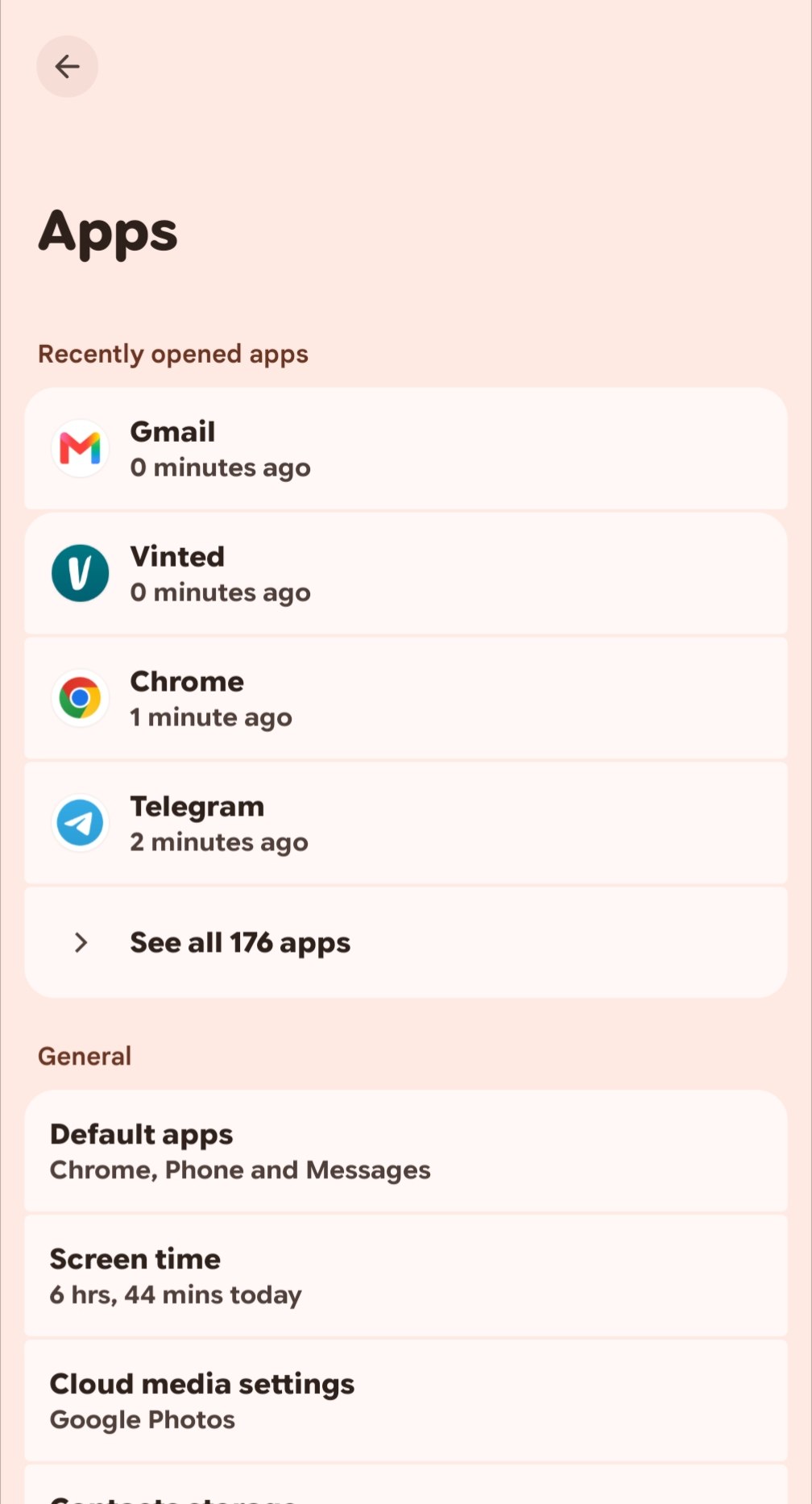
Open your phone's Settings and find Apps. Depending on your device, this section may be called Applications or Apps & notifications. You can use the search field in Settings to find it faster.
2. Find the Vinted app
Open the list of installed apps, find Vinted, and open its app settings. If the list is long, use the search field.
3. Open the default-link settings
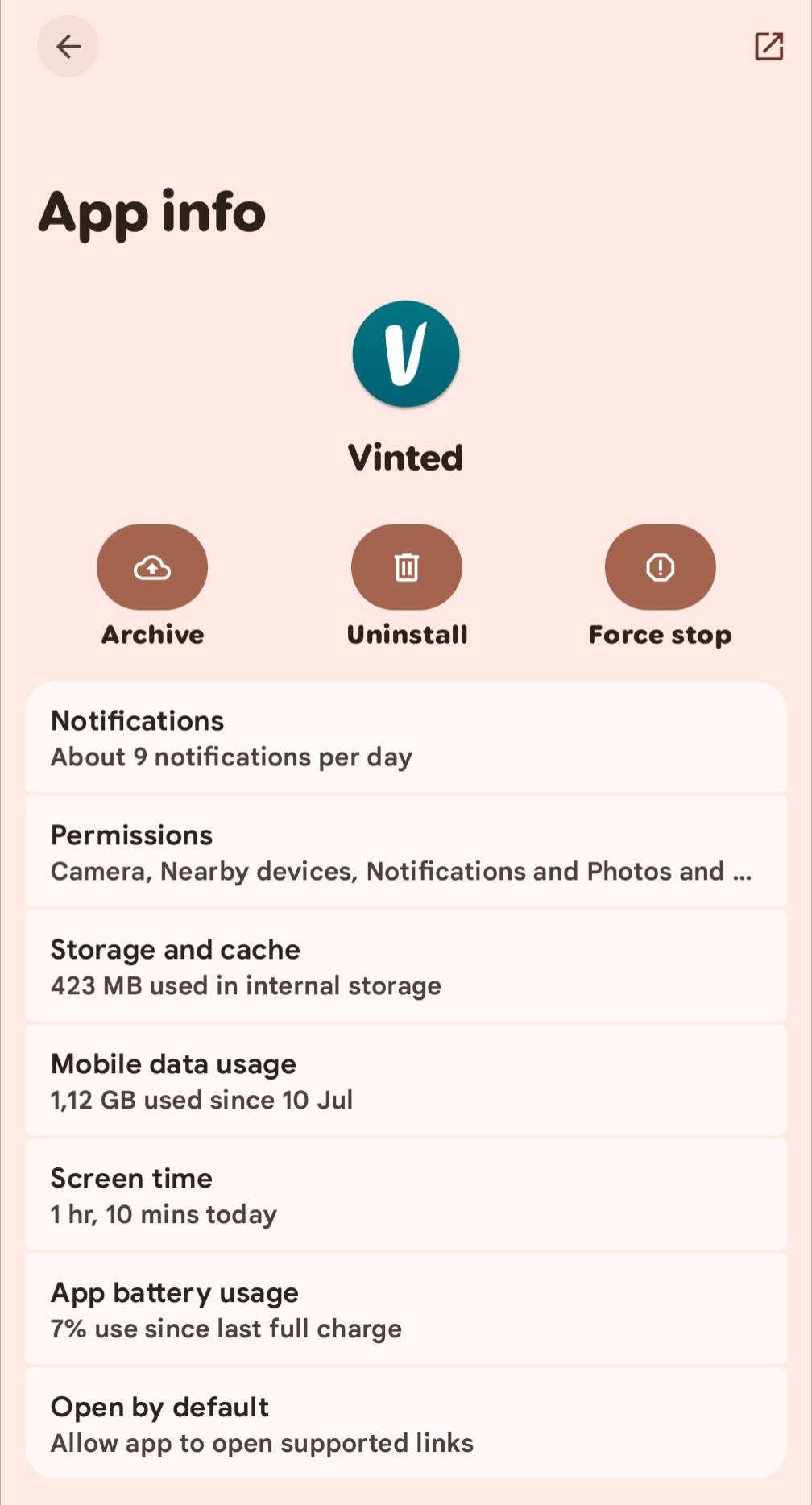
On Vinted's app info screen, find and open Open by default. Depending on the Android version or manufacturer, it may be called Set as default or something similar. These settings control whether Android sends supported links straight to the Vinted app.
4. Stop Vinted from opening links automatically
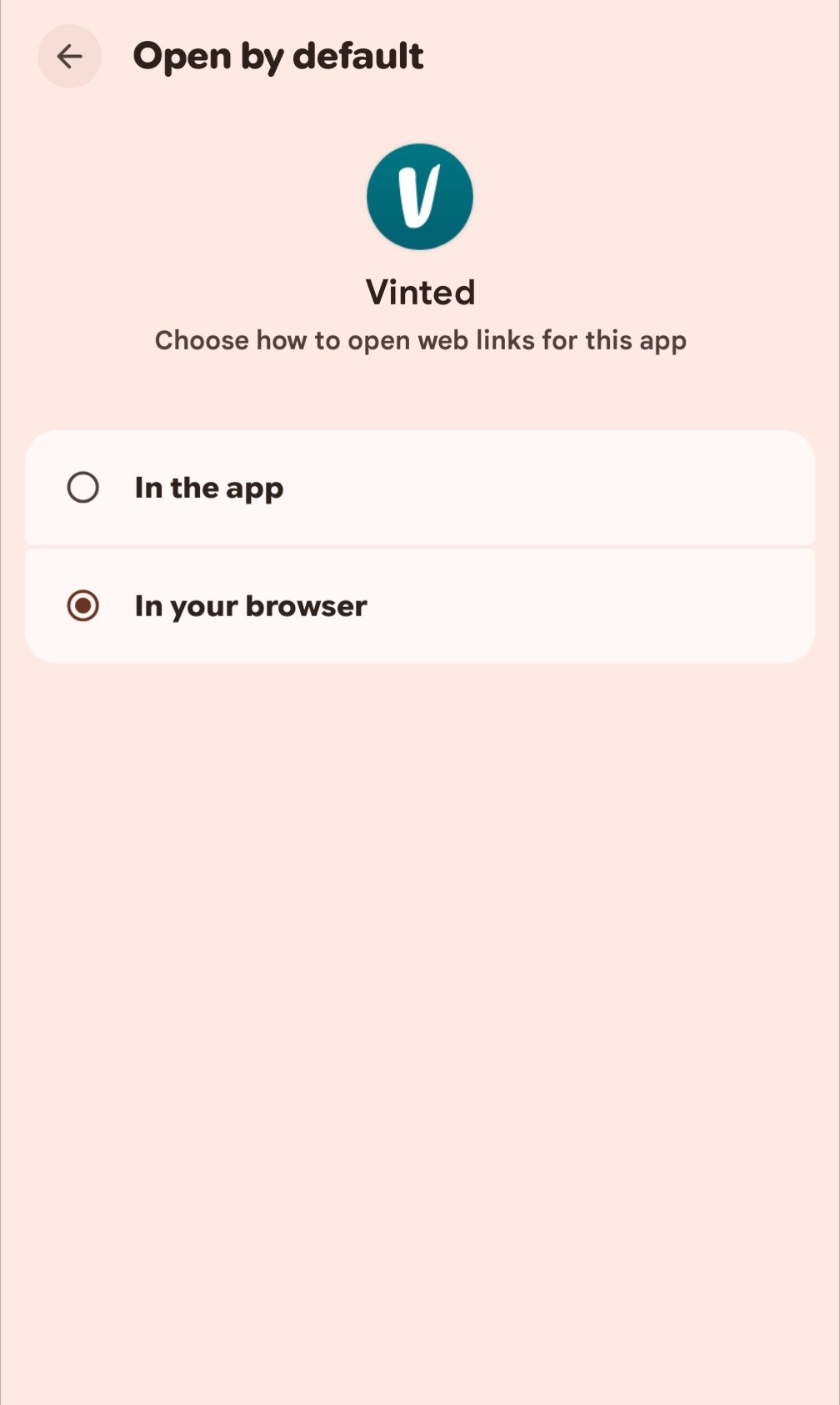
If your phone offers In your browser, select it. This tells Android to open Vinted links in your browser instead of the app.
If you do not see that option, use the closest available alternative:
- Turn Open supported links off. Do not turn it on if you want to keep links from opening automatically in Vinted.
- Choose Don't allow app to open links, if your phone shows that option.
- Choose Ask every time, if available, so Android lets you pick an app when you open a link.
The available choices depend on your phone. The goal is to stop Vinted from automatically taking over its links.
5. Open Vinted in your browser and copy the search URL
- Open Chrome or another mobile browser.
- Enter the address of the Vinted website for your country directly in the browser's address bar.
- Go to the product search you want and apply your filters, such as category, brand, size, or price.
- Copy the address of the search results page from the address bar. If your browser offers it, you can also use Share → Copy link.
- Add that search URL to Vinted Notificator Bot.
Copy the search-results page, not the address of one individual item. The search URL is what lets the bot monitor the query and filters you selected.
You're ready to use Vinted in your browser and send the search URL to the bot. After adding your links, you can return to Vinted's app settings and restore the previous link-opening behavior if you prefer.
For setup details, see how Vinted Notificator monitors Vinted searches and sends Telegram alerts.